Who Takes the Minutes Today? AI Meeting Note Taker: A Review of Tools
Every team knows this ritual. The call ends, everyone exhales, and a question hangs in the chat: “Will someone send the summary?” Usually, the secretary becomes the person who looked away from the camera for a moment or was too quick to say, “I can do it.” They spend the rest of the day deciphering their own scribbles and trying to remember who promised to send the drawings by Friday.
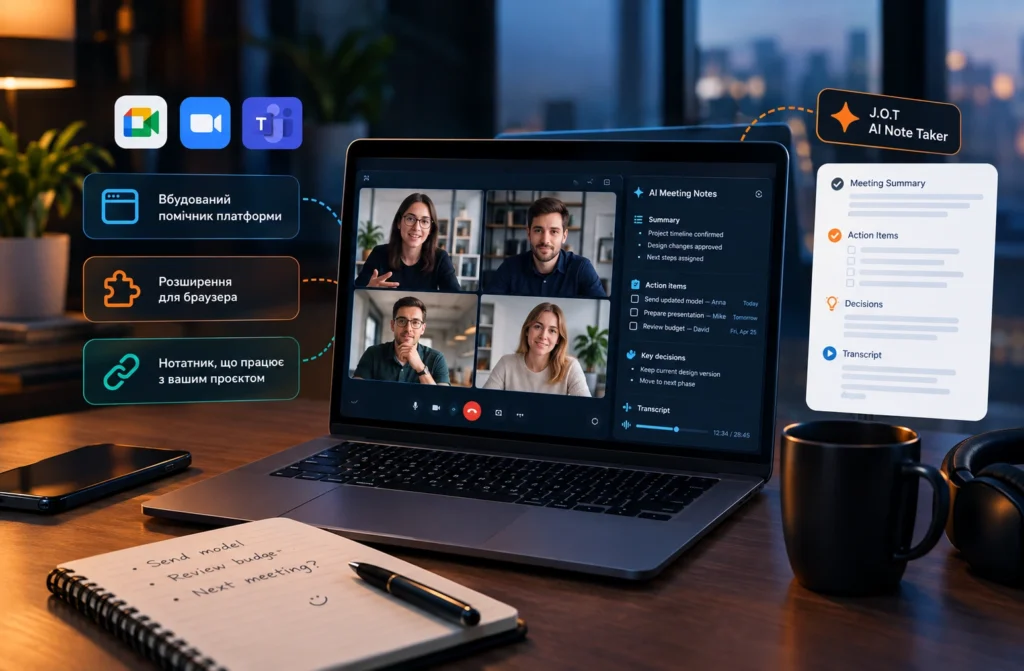
In 2026, teams increasingly give this role to an algorithm: an AI meeting note taker transcribes the conversation, highlights decisions, and creates a list of tasks. But this is not one type of product. There are three different approaches, and the choice affects more than the quality of the summary. It determines where your notes will live, who can see them, and whether colleagues will start nervously turning off their microphones after they learn that someone is recording.
Let’s look at them one by one.
Three Ways to Get Ready-to-Use Meeting Minutes
To simplify things, all automatic note-taking tools fall into one of three groups:
- Built-in platform assistant — a feature inside Google Meet, Zoom, or Teams.
- Universal browser extension — a separate plugin that “listens” to the meeting tab.
- A note taker connected to your workflow — a tool that sends the recording and summary directly to a project or task management system.
Each option works well in one scenario and feels inconvenient in another. Let’s start with the option that requires the least effort.
Built-in Assistants: Least Effort, Most Limitations
The main advantage of built-in AI features is obvious: you do not need to install anything, and the IT department has usually already checked the platform for security.
Google Meet — “Take notes for me” (Gemini). According to Google, Gemini transcribes the conversation, creates a summary with key actions, automatically saves it to Google Docs on your Drive, and sends an email with a link to the notes after the meeting. All participants receive a notification when the feature starts. Access depends on the plan: in summer 2026, Google opened the feature to Google AI Pro and Ultra subscribers, as well as eligible Workspace business plans, and initially only for selected languages. The company also announced that the feature would expand to in-person meetings and calls in Zoom and Teams. Users can start notes from the main screen of the Meet app.
Zoom AI Companion. Here, the focus shifts to your own notes: the My Notes feature lets you record your observations, while AI adds a transcript when one is available. According to Zoom, the feature works not only in Zoom but also in Teams, Google Meet, and offline meetings. One useful detail: you can describe an action in words, for example, “send the participants an email with the summary,” and the assistant will try to perform it.
Microsoft Teams. Summaries and AI notes in Teams depend on the license. Many reviews mention Teams Premium or Microsoft 365 Copilot as requirements. It is better to check with your company administrator to see whether your company has the required license, because the conditions can change.
Disadvantages of this approach. You depend on the ecosystem and the plan. If half of your clients invite you to Zoom and the other half use Teams, your notes will end up in different places. Language support also varies, and this matters more than it may seem. We will return to this point later.
Browser Extensions: When Meetings Happen on Different Platforms
The second type of solution works “on top of” the platform: a browser plugin listens to the tab audio and creates a transcript and summary regardless of who organized the call.
One example is JotMe, a Chrome extension. According to its developers, it transcribes meetings in Google Meet, offers live translation, and generates a summary with key points and actions. The developers emphasize that the extension works in the user’s browser and does not join the call as a separate “bot participant.”
There is an important detail here that people often forget. The absence of a bot from the participant list does not remove the obligation to tell people that you are recording. On the contrary, invisible recording requires even more transparency. The extension’s Chrome Web Store page also states that the user must obtain consent from all participants. A recording that only one person knows about is the fastest way to destroy trust within a team.
Disadvantages of this approach. You depend on the browser, pricing usually works per user, and a third-party service processes the data. For a regular status call, this may be a minor issue. For a conversation about a client’s budget, it is a different matter.
A Note Taker That Knows About Your Project: J.O.T AI Note Taker
The third type is less noticeable, but it may be the most interesting for project teams. The idea is simple: a transcript alone is not very useful. Teams need decisions, responsible people, and deadlines, preferably in the place where the team actually works.
According to the product page, J.O.T AI Note Taker is a browser plugin that records meetings in Zoom, Google Meet, or Microsoft Teams with one click and uploads them to a project in J.O.T APP. The recording then becomes available for AI analysis, transcription, and action-item generation. The developers position the note taker as an entry point into the project execution system, rather than as a separate tool that creates a document and stops there.
How does this differ from universal solutions? It comes down to what happens after the call. A regular note taker leaves you with a clean summary. You then need to move it to a tracker, send it to a colleague who missed the meeting, and remember the deadlines. A project-connected note taker closes this gap: the recording goes directly to the place where your tasks and documents live.
This approach makes the most sense if your team already manages projects in J.O.T APP. If not, first consider whether you need an entire system around the note taker. Check the current pricing, supported languages, and data-storage policy on the product page because these conditions can change.
How to Choose an AI Meeting Note Taker: Five Questions
Instead of comparing feature tables, answer a few questions about your own situation. This can save you a month of experiments.
1. Where should the notes live? If your team works in Google Workspace, Google Docs is a natural choice. If you work in a task tracker, look for a tool that can send the result there. Notes that you have to move manually every time will eventually stop getting moved.
2. What language do you actually speak? This is the most underestimated question. Ukrainian with English terms in the middle of a sentence, professional slang (“there are fewer clashes in the model”), and colleagues’ names pronounced with different accents create a serious challenge for transcription. Do not rely only on the list of supported languages. Test the tool on a real conversation with your team.
3. How will you notify participants? Agree on one rule and use it every time: announce the recording at the beginning of the meeting, provide an option to opt out, and give all participants access to the notes. It takes ten seconds and prevents most conflicts.
4. What about confidential information? Conversations about client drawings, HR issues, or commercial terms should not go to third-party services without checking their data-processing policies and retention periods. For such calls, turning the note taker off is a perfectly normal decision.
5. How much does it cost in practice? Free plans usually limit minutes, languages, or the number of summaries. Calculate the cost not only per month but also per person and based on the actual number of meetings your team has each week.
The Fifteen-Minute Test
The easiest way to understand whether a tool works for you is to run a short test meeting with two or three colleagues. Speak naturally, use professional terminology, and mention a few names and deadlines. Then check three things: whether the tool recognized names and terms correctly, whether it correctly identified who is responsible for what, and whether it added anything that nobody actually said. The last point gives you the clearest signal of how much you can trust the summaries.
What No Note Taker Can Do
There is one problem that no software can solve. An AI note taker only captures what people say. If the team makes no decisions during the meeting, you will get a beautifully formatted nothing: neat bullet points, a structured summary, and no specific action.
The good news is that the team can help both the algorithm and themselves by saying the conclusions out loud. Two or three sentences at the end of each topic are enough: “To summarize: we are keeping the current layout,” or “Action for Olena — send the updated model by Thursday.” These “voice anchors” help both the transcription and the people who will read the notes later.
In Short
- If you want minimum effort and work within one ecosystem, start with the platform’s built-in assistant.
- If your calls happen across different services, consider a universal browser extension.
- If you need summaries to go directly into the project, look at workflow-integrated note takers such as J.O.T AI Note Taker.
- Regardless of the tool: notify participants, test speech recognition with real conversations, and say decisions out loud.
The best AI meeting note taker is the one whose summaries colleagues actually use. If nobody has opened a single summary after a week, the problem is probably not the technology.
Features, pricing, and service conditions change. Check the latest information on the developers’ websites before implementation.
Looking for a team you can work with remotely? Check the current vacancies on join-jot.com or leave your CV.